FROM OUR BLOG
How to Add New Expense Groups in CostAllocation Pro for Better Grant Tracking

Your nonprofit just received approval for a new federal grant, and your program director is asking how quickly you can start tracking costs separately. Meanwhile, your current expense allocation setup groups everything into broad categories that made sense six months ago but don't match your reporting needs today. Sound familiar?
Most finance teams face this challenge when their cost tracking requirements evolve faster than their systems. The good news is that CostAllocation Pro makes it straightforward to add new expense groups without disrupting your existing allocations or month-end processes.
## Understanding Expense Groups vs. Individual Allocations
Before diving into the mechanics, it's worth clarifying what expense groups accomplish. Rather than creating separate allocation entries for each type of expense, expense groups let you organize related costs under a single umbrella while maintaining detailed visibility.
For instance, you might create an "Administrative Overhead" expense group that includes executive salaries, office rent, insurance, and utilities. Each component maintains its own general ledger mapping, but they're processed together during your allocation runs. This approach reduces the number of journal entries while preserving the detail your auditors expect.
The alternative—individual allocations for each expense type—works fine for organizations with simple cost structures. But when you're managing multiple grants with different indirect cost rates, or when compliance requirements demand specific expense categorization, expense groups become essential.
## Setting Up Your New Expense Group
The process starts in your Configurations section, where you'll find the expense allocation settings. Adding a new group requires three key decisions: naming, account mapping, and allocation basis.
Choose names that align with your grant reporting requirements. If your federal awards reference "personnel costs" and "other direct costs," use those exact terms rather than internal accounting language. Your program staff will thank you during budget variance meetings, and your auditors will appreciate the consistency.
Account mapping determines which general ledger accounts feed into each expense group. This is where you define both the source accounts (where costs originate) and destination accounts (where allocated costs are recorded). Pay attention to your chart of accounts structure—if you've set up separate expense accounts for different funding sources, make sure your mapping reflects those distinctions.
The allocation basis controls how costs are distributed across grants and programs. Most organizations use direct labor hours or direct salary dollars, but you might choose different approaches for different expense types. Facility costs often allocate based on square footage, while communication expenses might follow headcount.
## Configuring GL Mappings for Complex Requirements
General ledger mapping becomes more nuanced when you're dealing with multiple funding sources or compliance requirements that demand specific account treatments. Federal grants often require separating direct and indirect costs, while foundation grants might focus on program versus administrative expenses.
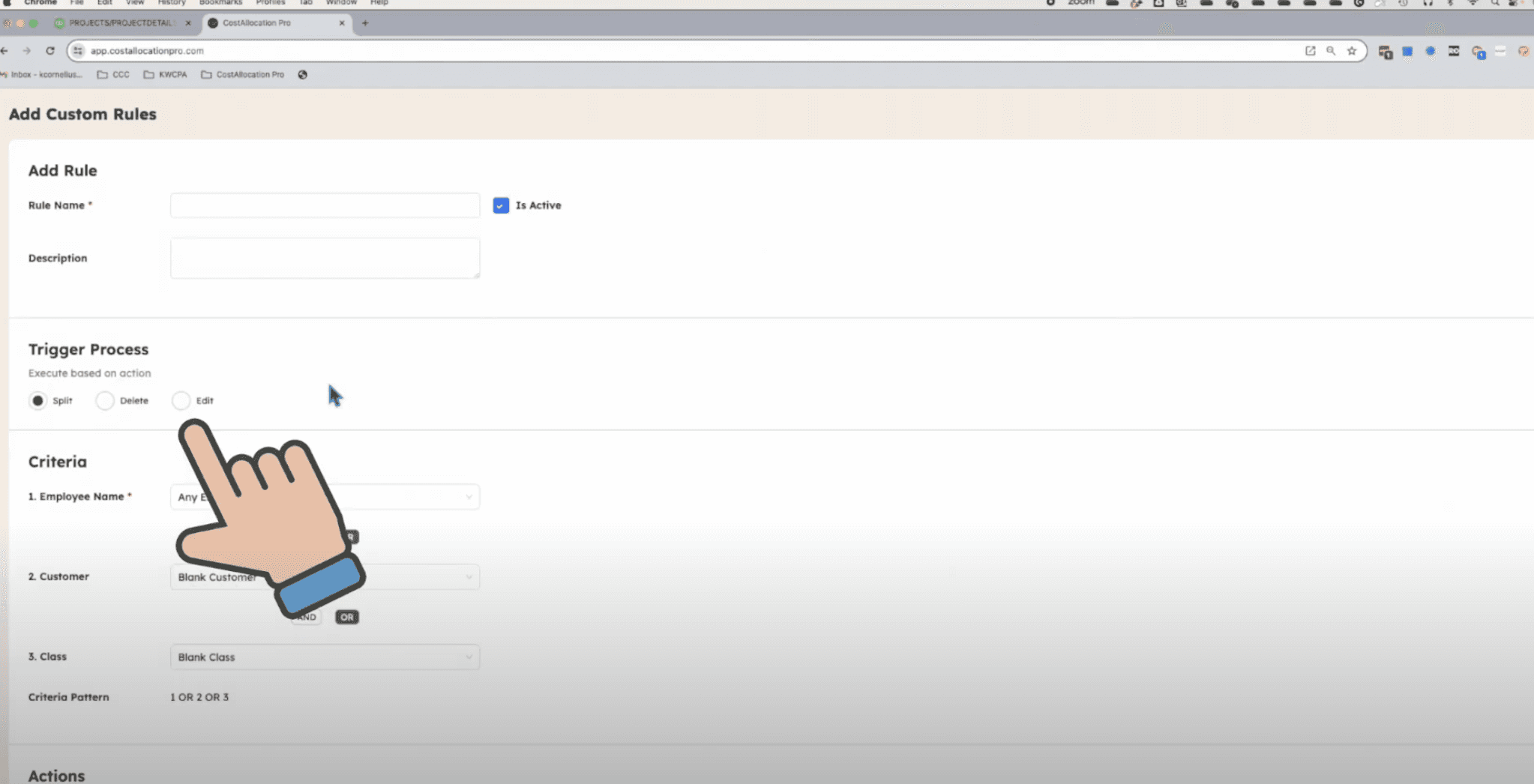
Custom GL mapping rules give you the flexibility to handle these variations without creating entirely separate allocation processes. You can set up rules that apply different account mappings based on employee roles, customer types, or specific grant requirements.
For example, executive director time might need to flow to "Management and General" expenses when allocated to foundation grants, but "Administrative" expenses when allocated to federal contracts. Rather than managing this manually each month, you define the rules once and let the system handle the complexity.
## Testing and Validation Before Going Live
Once you've configured your new expense group, resist the urge to process a full month immediately. Start with a small test—perhaps a single pay period or a subset of expenses—to verify that costs are flowing to the expected accounts and allocation percentages look reasonable.
Check your allocation percentages against your time tracking data. If an employee worked 60% of their time on Grant A, their salary allocation should reflect that same percentage unless you've specifically configured different rules. Discrepancies usually point to issues with your time sync or employee setup.
Review the resulting journal entries before syncing to QuickBooks Online. The debit and credit amounts should balance, and the customer/class assignments should match your grant tracking requirements. If you're using indirect cost rates, verify that those calculations are applying correctly to the appropriate expense categories.
## Maintaining Your Expense Groups Over Time
Expense groups aren't static. Grant requirements change, new programs launch, and organizational priorities shift. Plan for regular reviews—quarterly works well for most organizations—to ensure your groupings still serve your reporting needs.
Document your rationale for each expense group, including which grants or compliance requirements drove specific mapping decisions. When auditors ask why certain costs are categorized in particular ways, you'll have clear answers. When new team members join, they'll understand the logic behind your setup.
Setting up expense groups thoughtfully on the front end saves significant time during your monthly close process and gives you confidence that your grant reporting accurately reflects actual costs. The investment in proper configuration pays dividends every month when your allocations run smoothly and your financial reports tell the story your funders need to see.