FROM OUR BLOG
Class or Customer? How Nonprofits Can Set Up QuickBooks Online for Program and Grant Reporting

Every nonprofit finance team gets asked two questions about the same dollar: which program did it support, and which funder paid for it?
They sound similar. They aren't. Your statement of functional expenses cares about the first. Your grant reports care about the second. When your QuickBooks Online file tries to answer both with a single field, you end up rebuilding the answer in a spreadsheet every reporting cycle.
A cleaner setup gives each question its own field. Here's how many nonprofits do it, why it works, and what it means for allocating salaries, usually your largest expense.
Two questions, two fields
QuickBooks Online gives you several ways to tag a transaction. For nonprofit reporting, two do most of the work:
Class: which program or function? Classes are a natural fit for the categories your functional expense reporting uses: individual programs (Youth Services, Food Pantry, Workforce Training), plus Management & General and Fundraising.
Customer: which grant or funder? In QBO, "Customer" is just the name for a trackable party or project. Many nonprofits set up each grant or award as a Customer (often with sub-customers for award years or budget periods), so they can report by funder.
With both in use, one salary line can say: this was Youth Services work, paid for by the County Health Grant. Run P&L by Class and you get the functional view. Run reports by Customer and you get the grant view. Same transactions, no re-keying.
Some organizations use QBO's Location field or Projects for part of this, and that can work too. The principle is the same: keep "what kind of work" and "who's paying" in separate places.
What goes wrong when one field does both jobs
The most common workaround is a class list that tries to carry both answers at once:
Youth Services – County Grant
Youth Services – Foundation Award
Youth Services – Unrestricted
Food Pantry – County Grant
…
It works at first. Then a new grant arrives and every program needs a new class. A grant ends and you have to retire classes across the list. Rolling up all of Youth Services for the 990 means adding several classes together, and a grant report means picking pieces out of several programs. Each report becomes a small project.
Splitting the dimensions keeps both lists short and stable. Programs change slowly. Grants come and go. Neither list has to change when the other one does.
Where salaries come in
For most nonprofits, payroll is the biggest expense, and it's the hardest one to tag correctly. Rent or a supply order usually belongs to one program and one funder. A program manager's time might be split across two programs and three grants, and the split can change from one pay period to the next.
That's why salary allocation is where the two-field setup pays off most. Each pay period, every employee's cost (wages, plus employer payroll taxes and benefits) should be split based on something documented:
Time records for staff whose work varies, with each entry tagged to both a Class (program) and a Customer (grant).
A fixed percentage for staff whose role is steady. For example, an operations manager split 70% Management & General and 30% Fundraising. (Example only.)
When the split carries both tags, the same allocation feeds your functional expense statement and your grant reports. You don't do the work twice, and the two reports agree with each other because they come from the same entries.
A few practical points:
Not every hour has a funder. Admin and fundraising time often has a Class but no grant. That's fine. Decide where unfunded time goes (an "Unrestricted" or general Customer, or no Customer at all) and apply it consistently.
Allocate every pay period, not once a year. Small, regular entries are easier to review, and they're easier to defend when an auditor or funder asks how you got there.
Keep the payroll holding account honest. If your payroll provider books gross payroll to a single holding class, that class should be back near zero after each allocation. Anything left over isn't on any program or grant report yet.
How CostAllocation Pro fits in
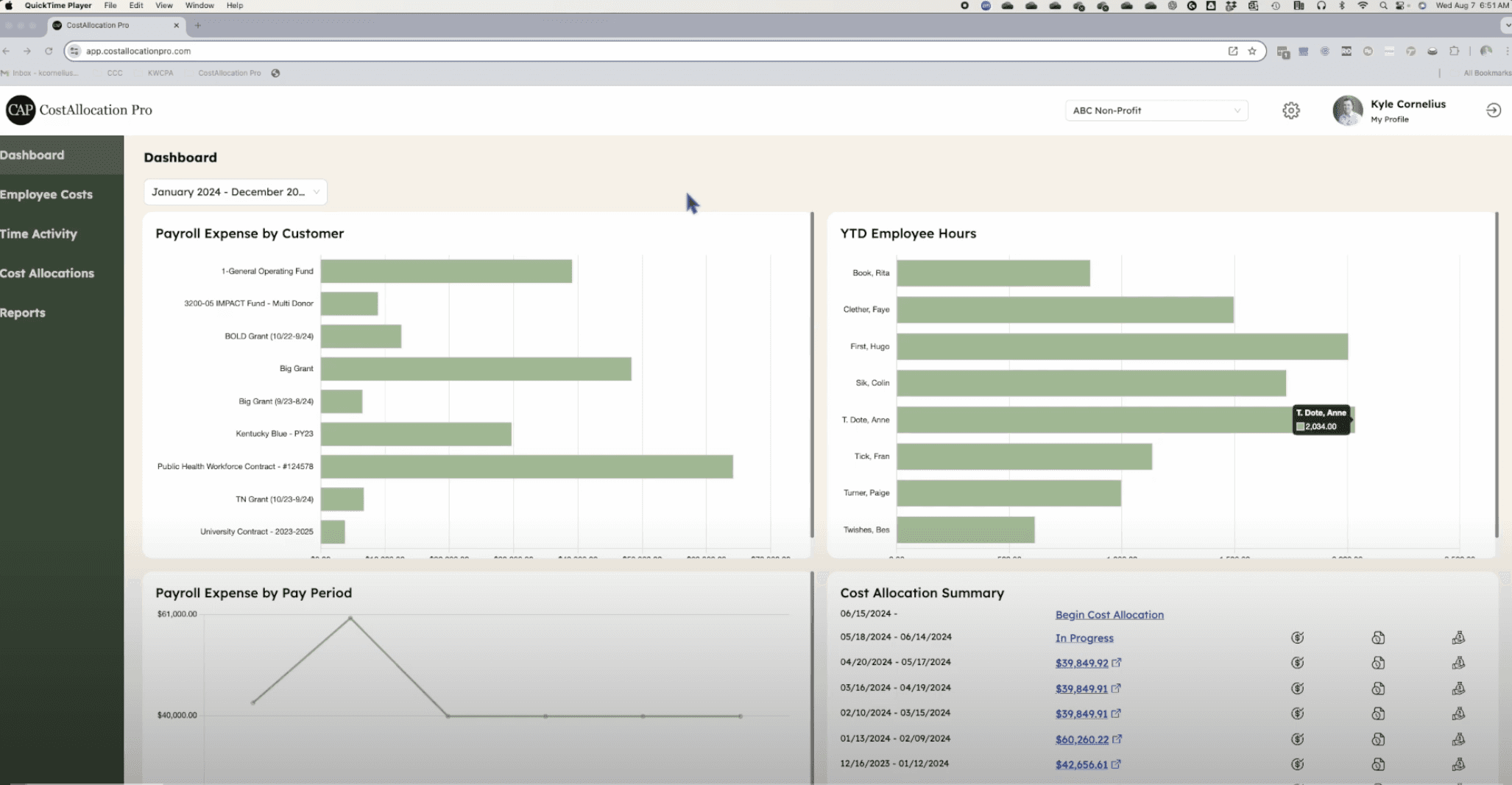
CostAllocation Pro is a standalone app that connects to QuickBooks Online and automates this allocation step. It works with the Customers and Classes already in your QBO file, so if you've set them up as above, CAP uses that structure as is.
Each pay period, you:
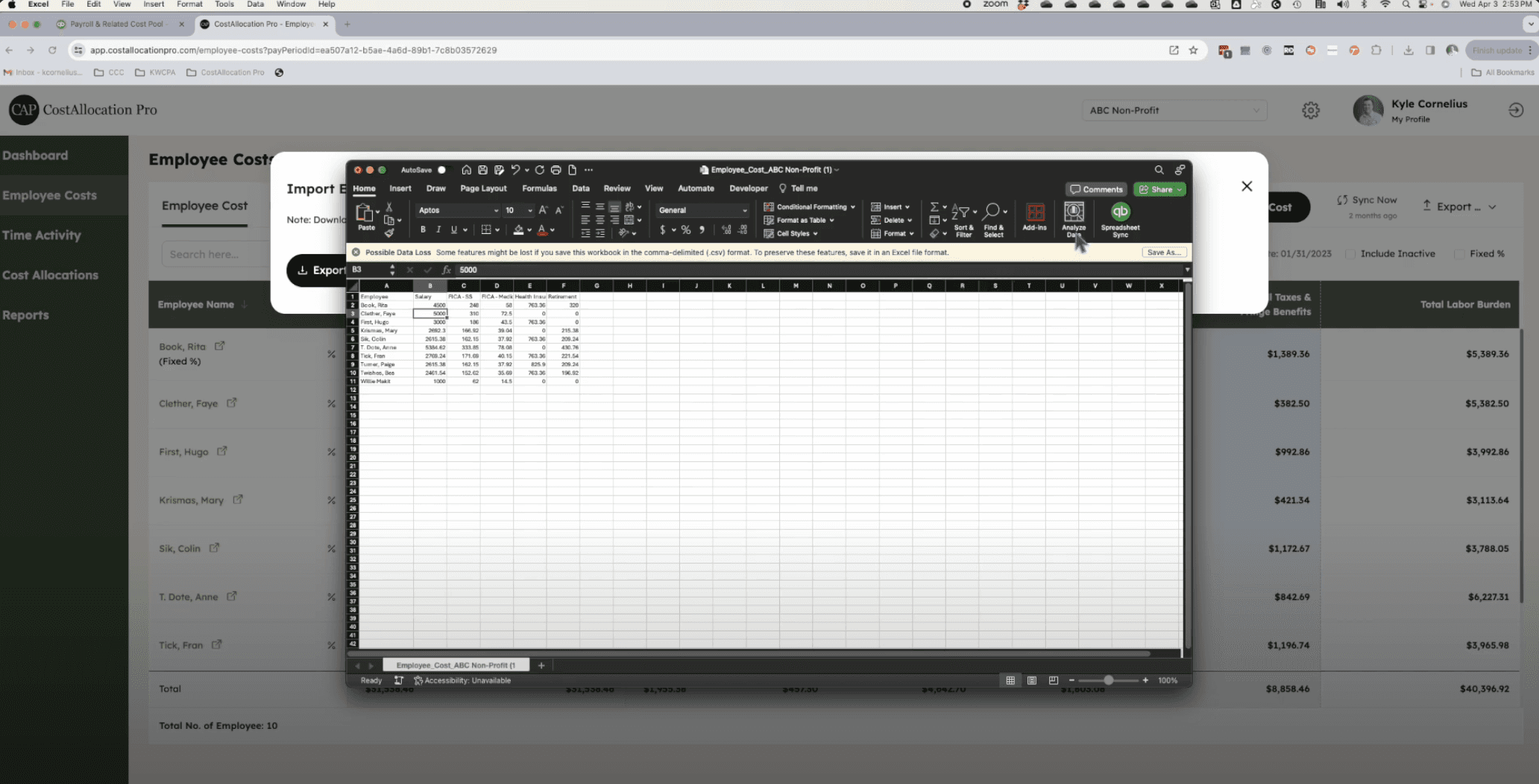
Import your payroll report (wages, payroll taxes, and fringe benefits) from a CSV or Excel export.
Allocate it. Import time logs tagged with Customer and Class, or set fixed percentages for employees whose split doesn't change. You can use both methods in the same pay period.
Review and preview the journal entry. You can see each debit line by employee, Customer, and Class before anything posts.
Post it to QuickBooks Online. The entry debits each program and grant for its share and credits the payroll holding class.
Two settings are especially relevant for nonprofits:
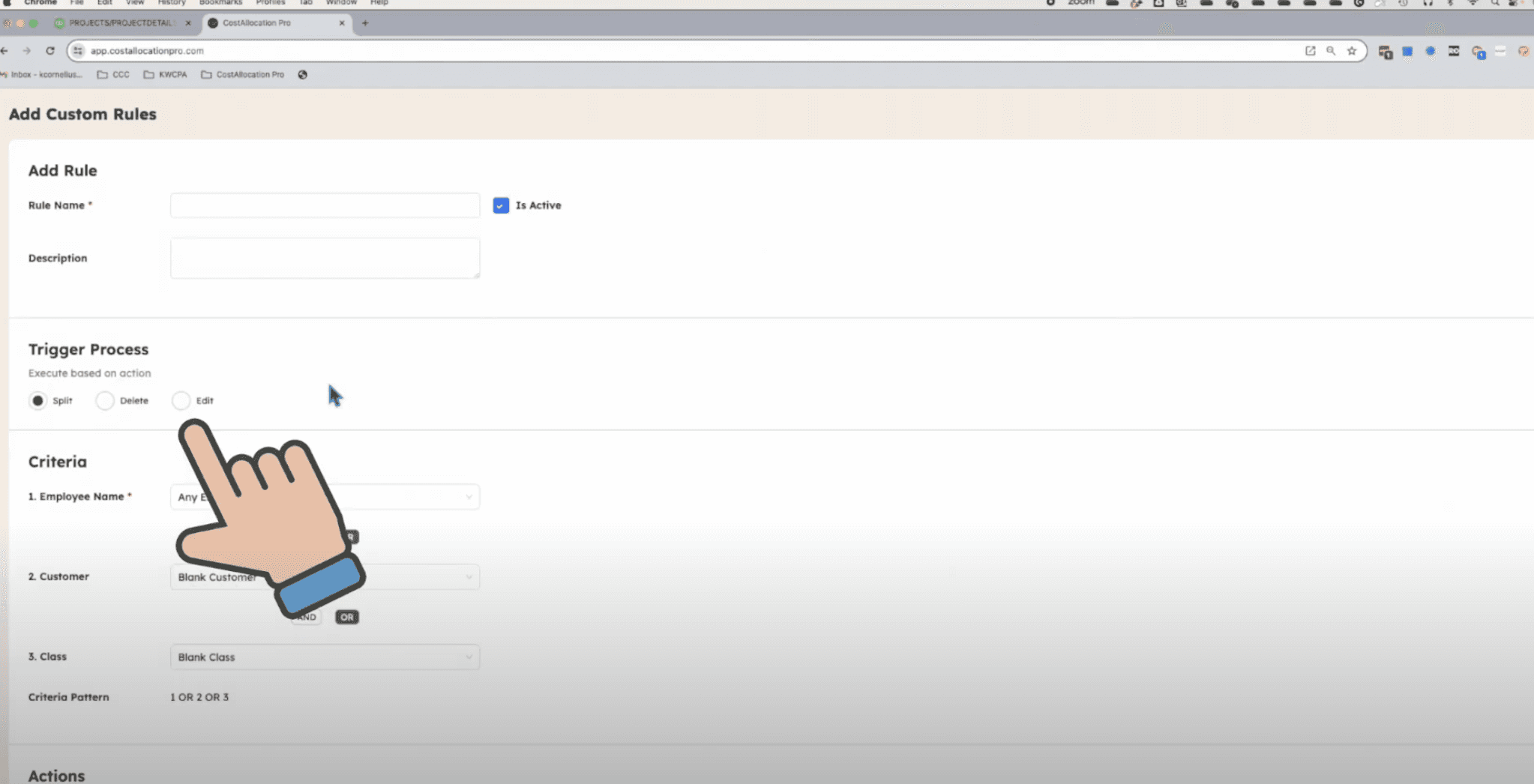
Time Settings let you choose whether Customer and Class are required on every time entry. If some of your time (admin, fundraising) genuinely has no grant, set Customer to not required, so those entries still allocate instead of getting stuck.
Exclude Employee Name (under Company Settings) leaves employee names out of the journal entry lines. That's useful if board members or outside reviewers will see the detail in QBO.
A quick setup checklist
Whether or not you use software for the allocation, here's a short list to work through before year-end:
List your programs and functions and make sure each has a Class, including Management & General and Fundraising.
List your active grants and awards and make sure each has a Customer (or sub-customer by award year, if you report that way).
Look for "combined" classes like "Program – Funder" and plan how to retire them going forward. Don't rewrite closed periods without talking to your auditor.
Check how staff time is captured. Can a timesheet entry carry both a program and a grant? If not, that's the first thing to fix.
Review fixed-percentage splits for steady roles, and confirm they still match what people actually do.
Talk it through with your CPA or auditor, especially before restructuring an existing file mid-year.
If you'd like to see how the allocation side works with your own setup, book a demo or start a 14-day free trial.
This article is educational and isn't accounting, tax, or audit advice. Every organization's chart of accounts and reporting requirements are different, so confirm your setup with your CPA or auditor.